Settings
Configuring the language, numeral system, themes, and rate in the Settings panel.
The Settings page lets you configure the calculator’s behavior and appearance.
Accessing Settings
- Click or tap the menu button (☰) in the top-left corner.
- A slide-out drawer opens from the left.
- Tap Settings.
To return to the calculator, tap the back arrow (←) in the top-left of the Settings header, or use the back button.
Language
Switch between English and Arabic.
- English — Left-to-right layout, English labels
- Arabic — Right-to-left layout, Arabic labels
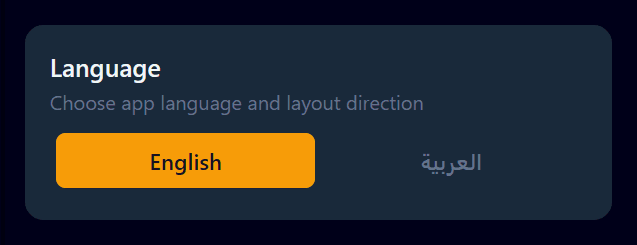
When you switch to Arabic:
- The entire interface flips to right-to-left (RTL) alignment
- All labels, menu text, and settings use Arabic translations
- The keypad buttons remain left-to-right for correct numeral entry
- Numerals themselves are not affected by this setting — see “Number System” below
Number System
Choose between two numeral displays:
- Standard (0-9) — Western/Arabic digits (
1,2,3…) - Arabic (٠-٩) — Eastern Arabic numerals (
٠,١,٢,٣,٤,٥,٦,٧,٨,٩)
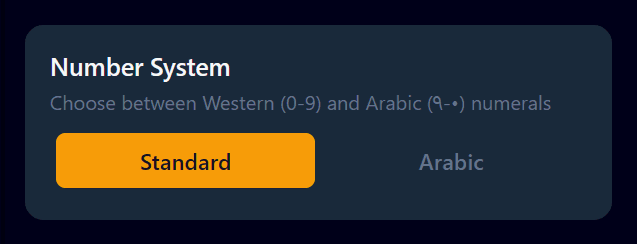
This affects:
- The digit buttons on the keypad
- The displayed values in all three fields (Before, After, Amount)
- Currency formatting with thousands separators
numeral system is independent of the language setting. You can have the interface in English while using Arabic numerals, or vice versa.
Precision (Decimal Places)
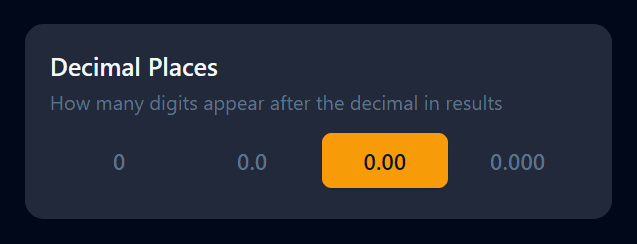
3-Way Calculator is designed to accommodate a wide range of real-world scenarios. You can set the calculator to use no decimal places for currencies such as the Japanese yen (JPY), two decimal places for currencies such as the U.S. dollar (USD), and three decimal places for currencies such as the Kuwaiti dinar (KWD). Two decimal places are the default and cover most of the world.
You can also set one decimal place for currencies and amounts that require a single decimal.
Theme Selection
Select from five visual themes. See the themes page for detailed descriptions and screenshots of each.
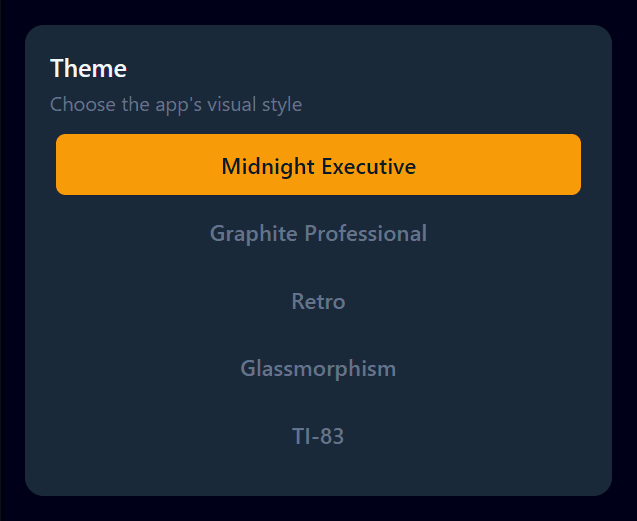
Available themes:
- Midnight Executive (dark slate with amber accents)
- Graphite Professional (dark monospace with cyan accents)
- Retro (CRT terminal with green phosphor)
- Glassmorphism (frosted glass with a purple gradient)
- TI-83 (Texas Instruments calculator homage)
The theme changes immediately when selected, and saved and restored on your next visit.
Flat Rate
Configure the percentage used for all Before/After/Amount calculations.
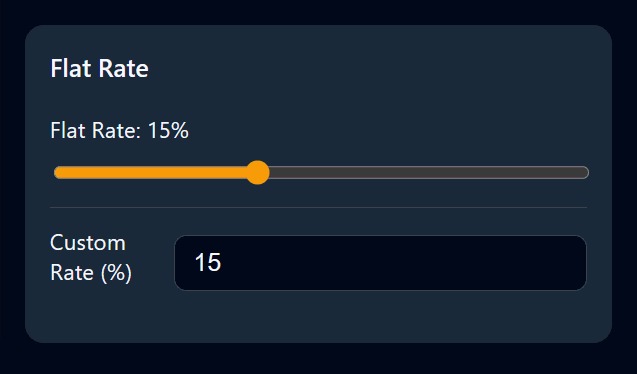
Slider
- Range: 0% to 40%
- Step: 1%
- Drag to select a common rate quickly
- When the actual rate exceeds 40%, the slider stays at the maximum as a visual indicator
- Note: The slider steps by 1%, but the quick rate popup on the calculator screen steps by 0.5%. If you set a half-percentage rate (e.g., 12.5 %) via the popup, the Settings slider will sit between two positions — your value is preserved, it just cannot be displayed on the coarser slider
Custom input
- Accepts any value from 0% to 1000%
- Precision: 2 decimal places (e.g.,
12.37) - Type a value and press Enter or tap outside the field to apply it
- Invalid input is silently reverted to the current rate
- Values are clamped to the valid range
For most everyday adjustments, use the quick rate popup on the calculator screen — it is faster and does not require leaving the calculator.
Use the Settings panel when you need:
- Rates above 40%
- More precise than 0.5% increments
- To enter an exact numeric value