Calculator
Detailed explanation of the calculator screen — display fields, keypad, focus, and error handling.
This page explains every element of the main calculator screen.
Screen layout
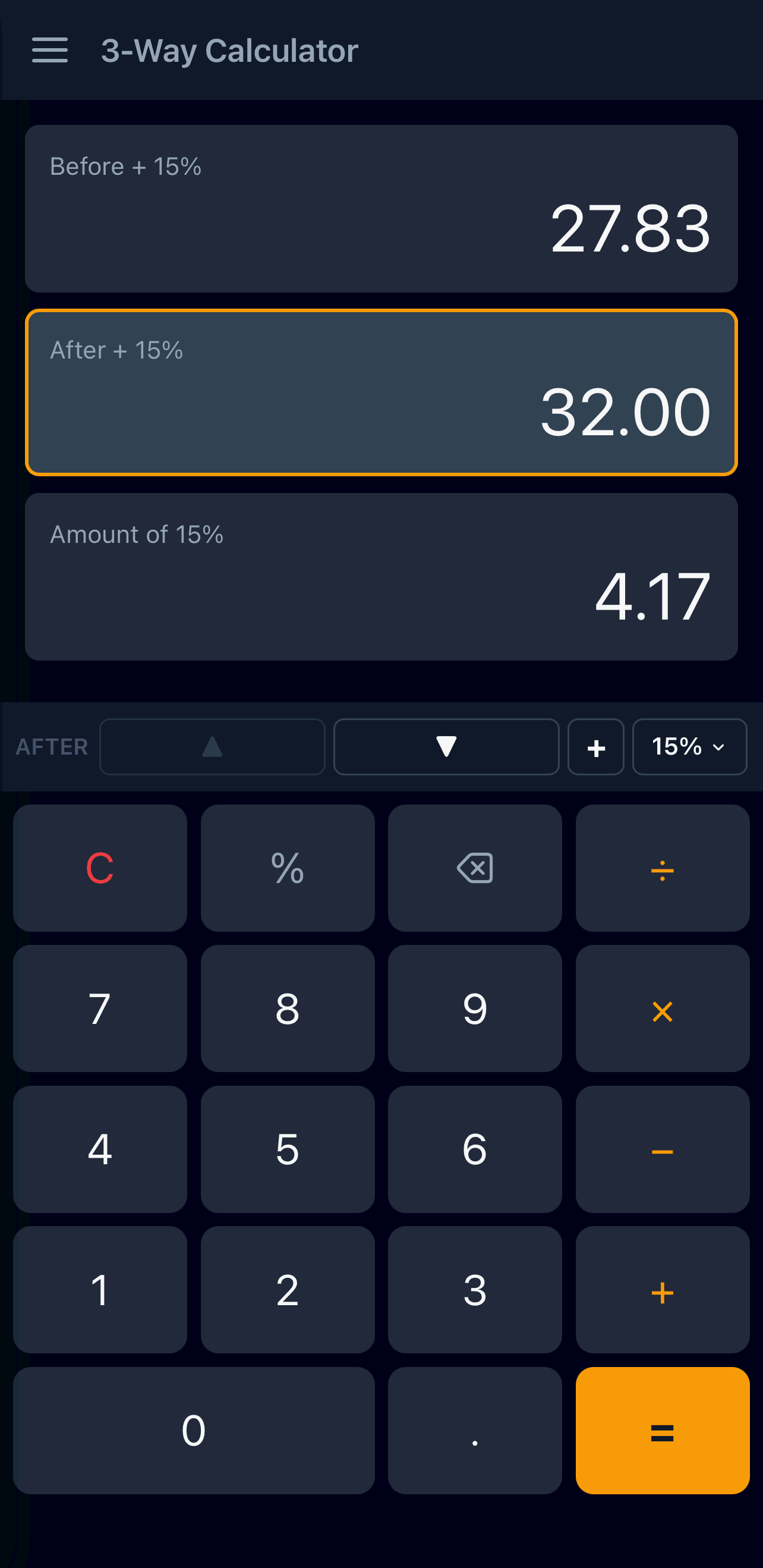
Main calculator screen
From top to bottom:



Header
- Menu button (☰) — opens the slide-out drawer for navigating to Settings and About pages
- Title — “3-Way Calculator”
Display fields
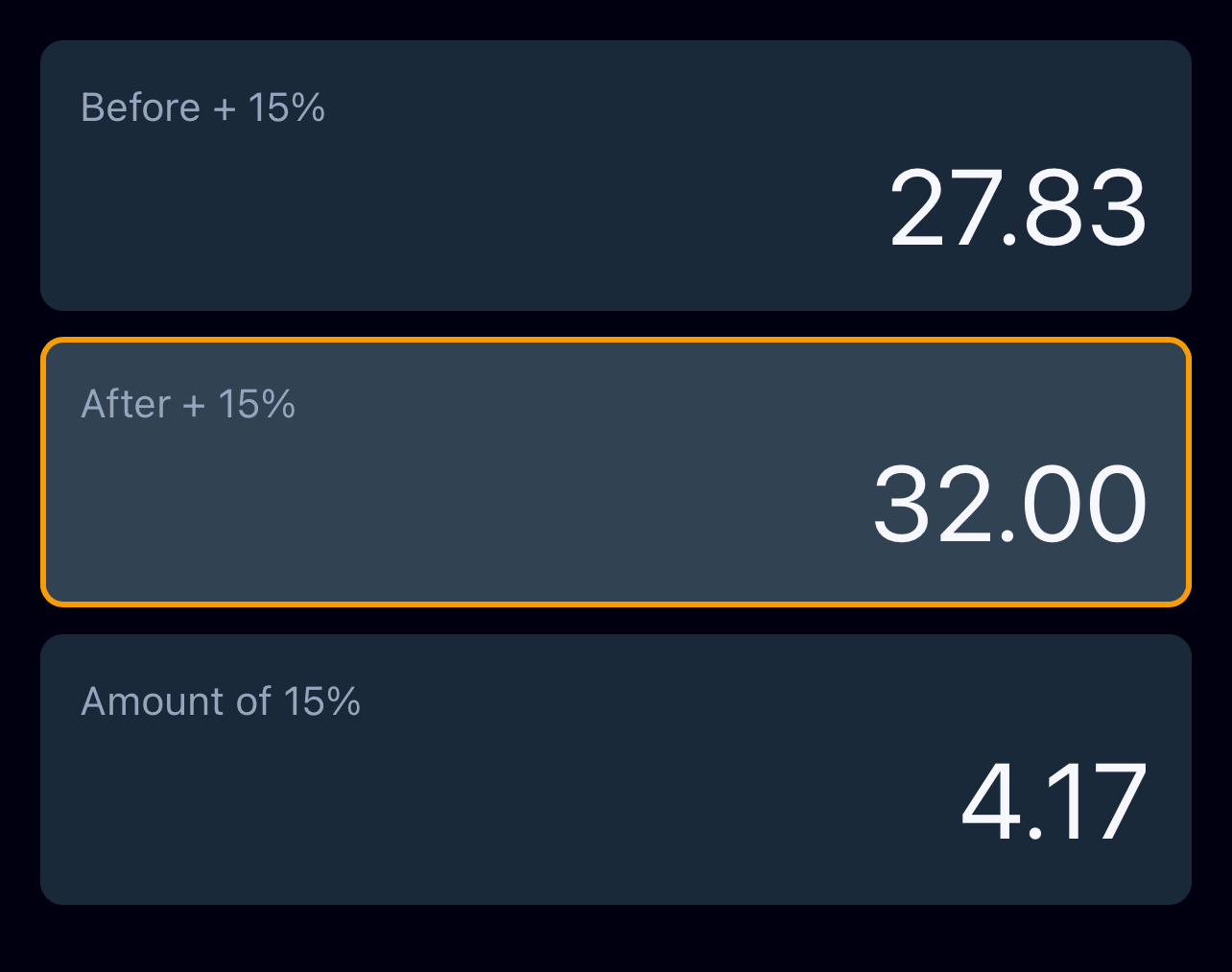
Three tappable fields show the current values:
- Before X% — the starting amount
- After X% — the resulting amount
- Amount of X% — the calculated difference
The X in each label is replaced by the current flat rate (e.g., “Before 15%”, “After 15%”, “15% Amount”). This keeps the labels self-documenting no matter what rate or direction you are using.
Each field displays:
- Label — dynamically shows the field name with the current rate embedded
- Value — the formatted currency amount (e.g.,
$1,234.56) - Highlight — the active field has a coloured border
Focus and anchoring
Tap a field to make it the active field (highlighted). This is the “anchor” — you type a new value into it, and the other two fields recalculate automatically using the current flat rate and direction.
This “input anchoring” is the core interaction model:
- Before or After as anchor → the other two fields are computed deterministically from the rate
- Amount as anchor → the calculator uses the 3WaySmartRound algorithm to find the cleanest Before and After values, because multiple Before/After pairs can produce the same Amount due to rounding
Anchoring also means:
- You never lose a value — the anchor field is never overwritten
- The calculation direction is always clear from the active field
- Switching anchors is a single tap
Formatting
- Thousands separators (commas) are added automatically
- By default, two decimal places are shown for currency precision. You can set 0, 1, 2, or 3 decimal places in the Settings screen
- Arabic numerals (٠-٩) are used when the numeral system is set to “Arabic” in Settings
- Values are displayed left-to-right even in right-to-left (Arabic) layout, ensuring numbers are always readable
Long-press to copy
Long-press any display field (hold for ~0.5 seconds) to copy its value to the clipboard. A toast notification appears at the bottom of the screen confirming the copied value (e.g., “Copied: 1,234.00”).
This is useful for pasting values into invoices, messages, spreadsheets, or other apps. The copied value always includes decimal places matching the current precision setting — for example, if precision is set to 0 decimal places, the display shows 6,480 but the clipboard receives 6,480.00 for professional use.
A short tap still sets the field as the active anchor. Long-press is an additional behavior — it does not replace the tap.
Nudge toolbar
The toolbar between the display fields and the keypad contains:
- Active field label — shows the name of the current anchor and direction of calculation and the rate (e.g., “Before + 15%”, “After - 6%”). This is the field that will be adjusted when using nudge or entering values.
- ▲ (nudge up) — increases the active field by 1 cent (see nudge)
- ▼ (nudge down) — decreases the active field by 1 cent
- Direction button (
+/−) — toggles between additive and subtractive calculation mode. See Calculation direction below. - Rate badge — shows the current flat rate (e.g., “15%”) with a small chevron. Tap to open the quick rate popup.
The nudge buttons are disabled when:
- The Amount field is active (it is a derived value, not directly adjustable)
- The active field is at its boundary limit (nudging further would change the tax amount)
The nudge buttons, direction toggle, and rate badge are grouped at the right end of the toolbar.
Calculation direction
The + / − button on the nudge toolbar controls whether the percentage is added to or subtracted from the starting amount.
Additive mode (+)
This is the default mode. It follows the standard VAT/tax formula:
After = Before + Amount
Amount = Before × rate
After = Before × (1 + rate)
In this mode After > Before. Examples: VAT, GST, sales tax, tips, commissions.
Subtractive mode (−)
Tap the + button to switch to −. The formula becomes:
After = Before − Amount
Amount = Before × rate
After = Before × (1 − rate)
In this mode After < Before. Examples: Zakat, discounts, depreciation, net salary after deductions.
What changes when you toggle
| Aspect | + (additive) |
− (subtractive) |
|---|---|---|
| Field labels | Before X% / After X% / Amount of X% | Same (labels are direction-independent) |
| After vs Before | After > Before | After < Before |
| Rate range | 0% to 1000% | 0% to 99.99% |
| Typical use | VAT, commission, tips | Zakat, discounts, depreciation |
When you toggle direction with existing values, the currently focused field stays unchanged and the other two recalculate using the new formula. This is the same behavior as changing the rate.
Rate cap in subtractive mode
In subtractive mode, the rate is capped at 99.99% because a rate of 100% or higher would produce a non-positive After value (After = Before × (1 − 1) = 0). If you switch from additive to subtractive while the rate is above 99.99%, the rate is automatically clamped to 99.99%.
Virtual keypad
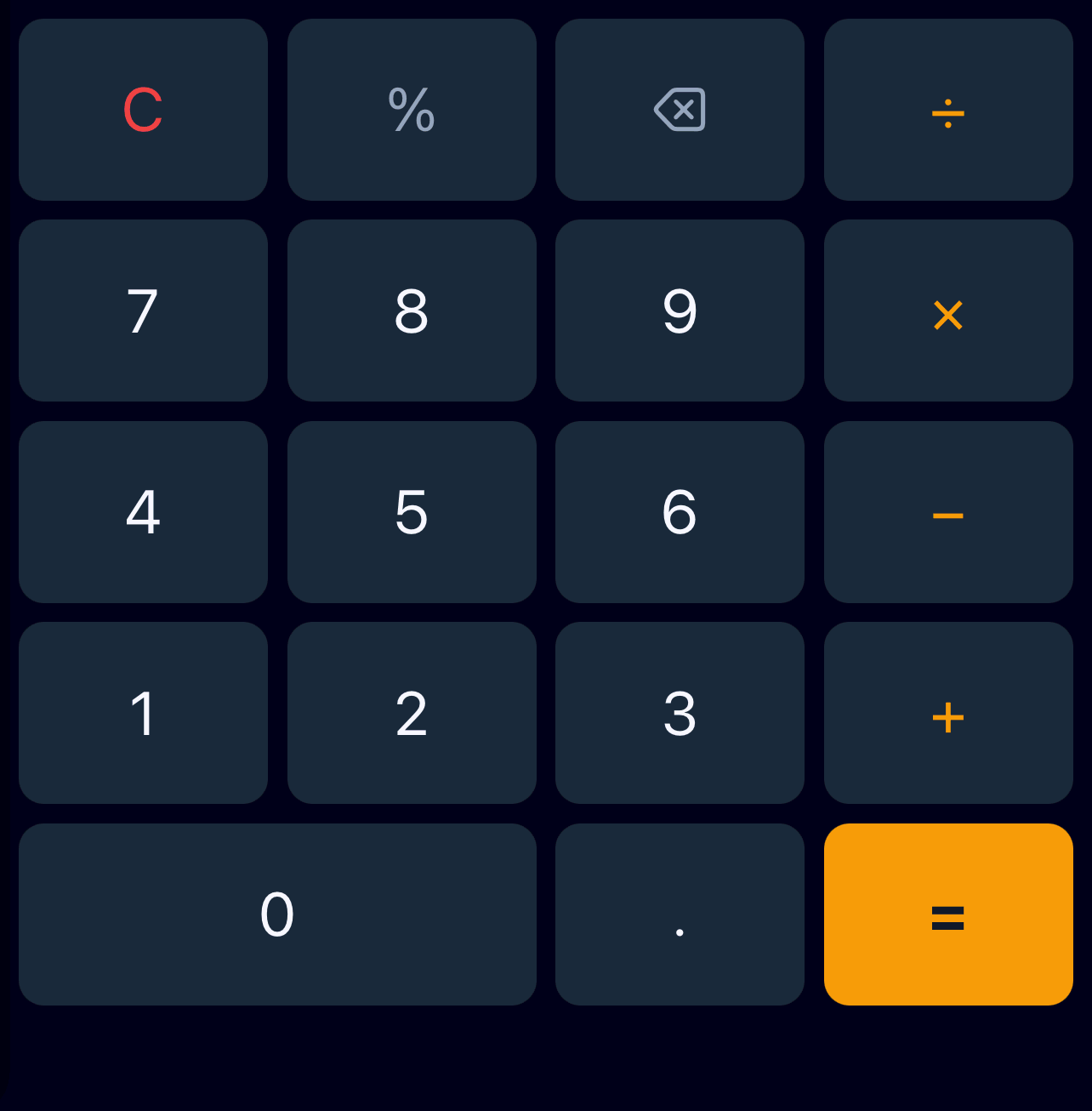
A 5×4 grid of buttons for entering numbers and operations:
| Row | Buttons | |||
|---|---|---|---|---|
| 1 | C (clear) |
% (percent) |
⌫ (backspace) |
÷ (divide) |
| 2 | 7 |
8 |
9 |
× (multiply) |
| 3 | 4 |
5 |
6 |
− (subtract) |
| 4 | 1 |
2 |
3 |
+ (add) |
| 5 | 0 (spans 2 columns) |
. (decimal) |
= (equals) |
Each button has a distinct visual style:
- Digit buttons (0-9, .) — standard appearance
- Clear (C) — danger color (red tint)
- Operator buttons (÷, ×, −, +) — accent color
- Special buttons (%, ⌫) — muted style
- Equals (=) — primary/accent background
When the numeral system is set to “Arabic”, digit buttons show Eastern Arabic numerals (٠١٢٣٤٥٦٧٨٩) instead of standard digits.
Long-press
Holding certain keys activates shortcuts for faster entry:
| Key | Long-press behavior |
|---|---|
| ⌫ (Backspace) | Hold to rapidly delete characters one at a time. Starts after 400ms, repeats every 80ms. |
| 2 through 9 | Hold to insert multiple zeros at once (e.g., hold 5 inserts 00000). Number of zeros equals the digit value. Only works when the current field value is greater than zero. |
Keys 0, 1, C, and all operator buttons do not have long-press behavior.
The digit long-press serves two purposes. First, it speeds up entry of round numbers — a million is simply 1 followed by a long-press on 6; a million two hundred thousand is 12 followed by a long-press on 5. Second, it prevents entry errors: typing many zeros individually is easy to lose count of, forcing you to either restart, pause to count, or run a wrong calculation. A single long-press eliminates the guesswork.
Error handling
When something goes wrong, an error message appears between the nudge toolbar and the keypad. The display fields are hidden while an error is shown. Tap C or press Escape to clear the error.
Error messages
| Message | Cause | What to do |
|---|---|---|
Error: Division by zero |
An arithmetic operation tried to divide by zero | Enter a non-zero second value |
Error: Limit Exceeded |
A computed value exceeds 12 integer digits | Reduce the input values |
Error: Non-zero tax at 0% rate |
The rate is 0% but a tax amount was entered | Set a non-zero rate, or zero out the Amount field first |
Error: Negative Gross |
Subtractive mode with a rate so high that After becomes negative | Reduce the rate and check your inputs |
Input limits
- Integer digits: maximum 12
- Decimal places: configurable in Settings (0, 1, 2, or 3); default 2
- Maximum value: depends on decimal places — with 2 decimal places, 999,999,999,999.99
- Rate range: 0% to 1000% in additive mode, 0% to 99.99% in subtractive mode
— quick rate setting popup limited to 0% to 40% regardless of direction, with steps of 0.5%
- For rates outside this range or finer granularity, use the Settings panel
Keyboard support (desktop web)
The calculator responds to physical keyboard input. See the keyboard shortcuts page for the full reference.