Rate Configuration
How to set and adjust the flat rate — quick popup on the calculator screen and full settings panel.
The flat rate is the percentage used to calculate Before, After, and Amount. It is the single most important setting in the calculator.
What is a flat rate?
A flat rate means the same percentage is applied to every transaction. Common examples include:
- VAT / GST — typically 5% to 27% depending on the country
- Sales tax — varies by state, province, or city
- Commission — a fixed percentage of a sale
- Zakat — 2.5% of qualifying wealth
- Tipping — often 10%, 15%, or 20%
The calculator does not use tiered or progressive rates. If your use case needs different rates for different transactions, you change the rate each time.
Default rate
The calculator starts at 15% — a sensible default for many common scenarios such as tipping, VAT, commission, or other uses. The rate is saved to your browser and will be restored on your next visit.
Two ways to change the rate
1. Quick rate popup (from the calculator screen)
The fastest way to change the rate is the rate badge on the nudge toolbar. It shows the current rate (e.g., “15%”) with a small arrow.
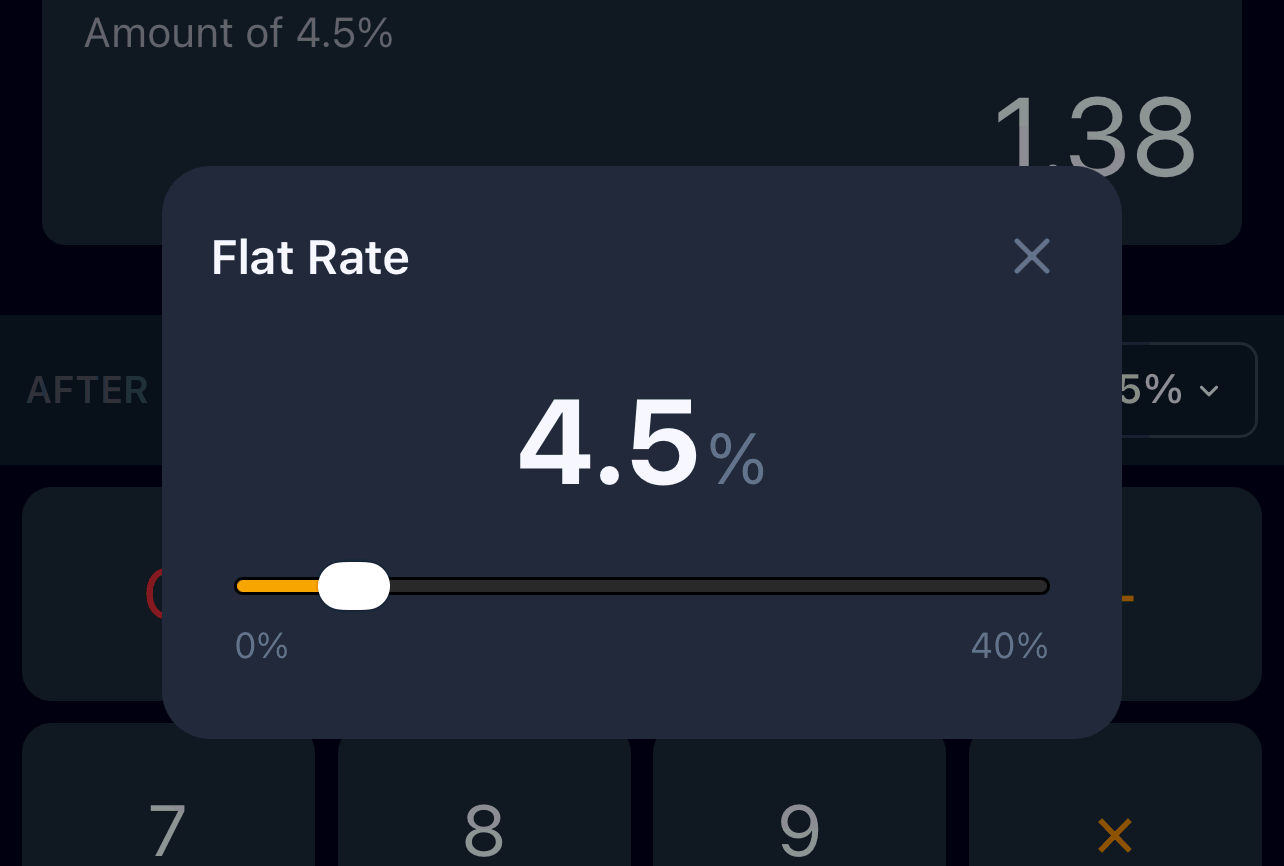
Quick rate popup
To use it:
- Tap the rate badge on the toolbar (between the display fields and the keypad).
- A popup appears showing the current rate in large text and a slider.
- Drag the slider to any value between 0% and 40% in 0.5% steps.
- The rate updates instantly as you drag — no confirmation needed.
- Tap outside the popup or the × button to close it.
When to use this: For most everyday rate changes within a typical range (0–40%). It is fast, visual, and does not require leaving the calculator screen.
When to use Settings instead:
- You need a rate above 40% (e.g., commission of 50%, margin of 300%)
- You need finer granularity than 0.5% (e.g., 12.37%)
2. Settings panel (full control)
For full control, use the Settings page:
- Open the drawer menu (tap ☰ in the top-left).
- Tap Settings.
- Find the Flat Rate card.
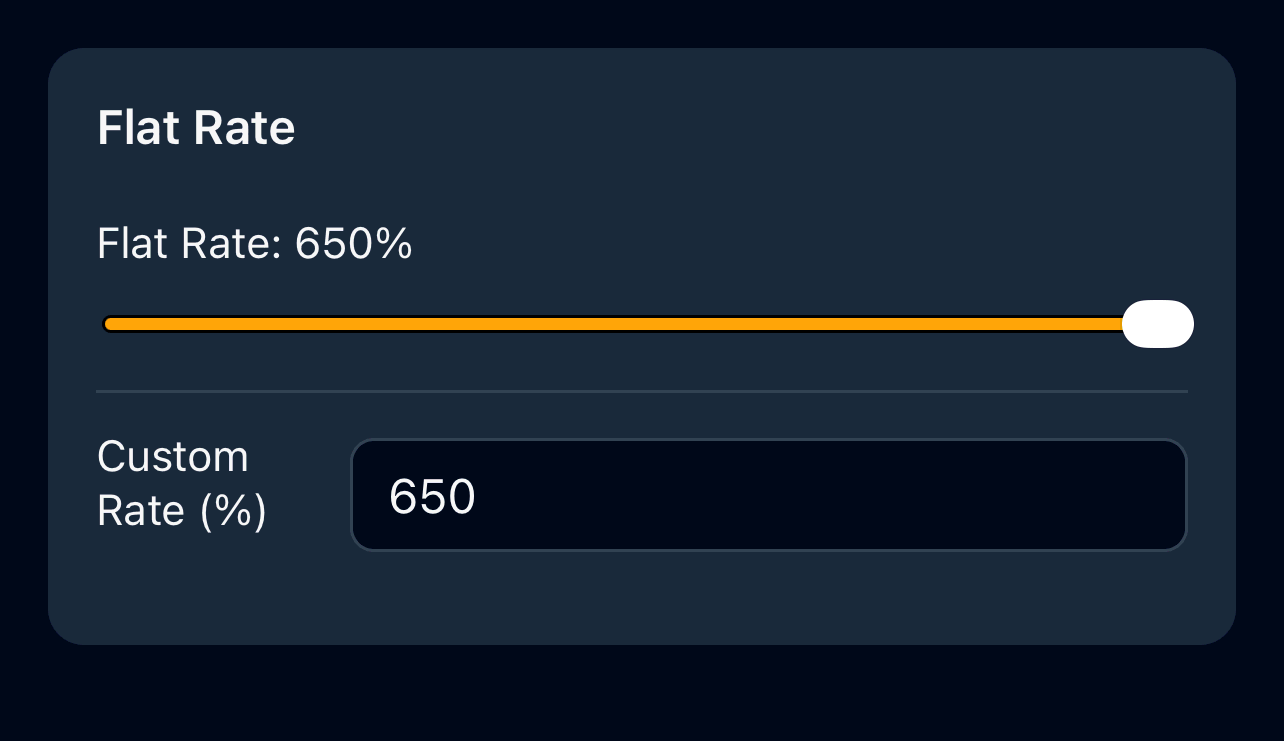
Rate settings panel
The Settings panel offers two controls that work together:
Slider (0%–40%, step 1%)
- Quick visual selection for common rates
- When the actual rate is above 40%, the slider stays at its maximum position as a visual indicator
- Changing the slider updates the custom input below it
Custom input (0%–1000%, 0.01 precision)
- A free-form numeric field for any rate
- Accepts values from 0% to 1000% with two decimal places of precision
- Typing a value and pressing Enter or tapping outside the field applies it
- Invalid input (blank, NaN) is silently reverted to the current rate
- Values are clamped to the valid range (0–1000)
Examples of rates beyond the quick popup range:
| Rate | Use case |
|---|---|
| 50% | Equal split (commission or co-ownership) |
| 100% | Doubling (e.g., service charge = 100% of subtotal) |
| 300% | High-margin commission structures |
| 0.25% | Very low financial transaction rates |
How rates affect calculations
The flat rate is used in every calculation. The exact formula depends on the calculation direction (additive or subtractive).
Rate range by direction
| Direction | Minimum | Maximum | Notes |
|---|---|---|---|
Additive (+) |
0% | 1000% | Higher rates for commission/margin scenarios |
Subtractive (−) |
0% | 99.99% | Capped — 100%+ would produce zero/negative After values |
Special case: 0% rate
When the rate is set to 0%, the direction does not matter:
- Before = After for all calculations
- Amount = 0 always
- Nudge is disabled (no meaningful boundaries exist)
- Entering a non-zero Amount value shows the error “Error: Non-zero tax at 0% rate”
This is useful when a zero rate is needed (e.g., interest-free terms, fee-free transactions, or testing the calculator).
Special case: switching direction with a high rate
If you have a rate above 99.99% while in additive mode and you switch to subtractive mode, the rate is automatically clamped to 99.99%. This prevents the calculation from producing a zero or negative After value.
Rate badge display
The rate badge on the nudge toolbar shows:
- Whole percentages as integers:
15% - Half-percentages with one decimal:
12.5% - Rates above 40%: still shows the correct value (e.g.,
50%), but the quick popup slider maxes out at 40